The HDX remote control provides convenient access to the key functions of an HDX system. Through the Nureva App® and Nureva Console the HDX remote control can be monitored and managed.
Button functions
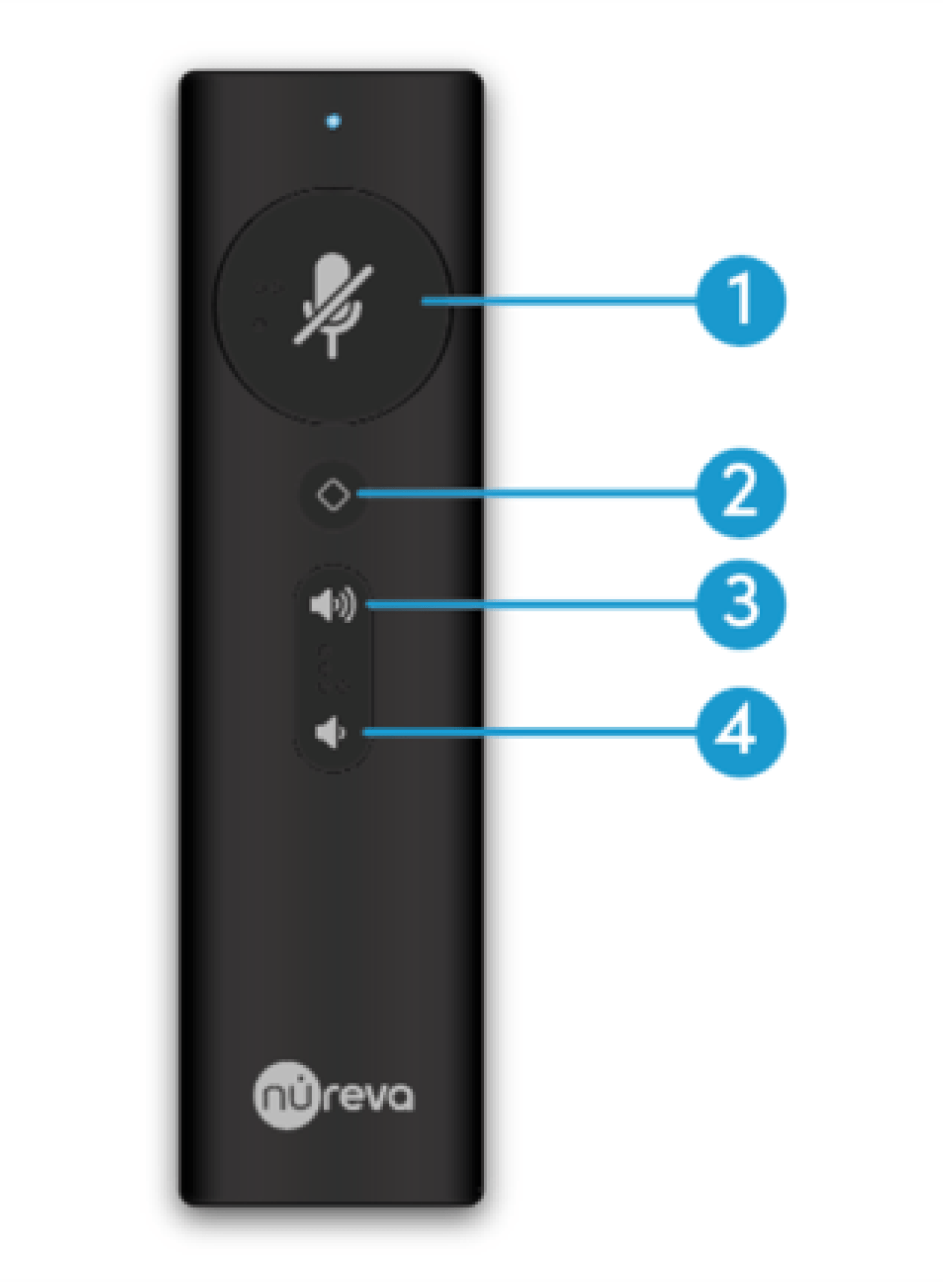
Mute and unmute
Mute or unmute microphone pickup
Customizable button
configure with the Nureva App
Volume up
increase the in-room speaker volume
Volume down
decrease the in-room speaker volume
Pairing the remote control
The HDX system hub automatically detects compatible remote controls when one is in range and available. The system hub can only pair with one remote at a time.
Get within close range of the system hub.
Confirm the antenna is installed on the system hub.
Make sure the batteries are inserted.
Press any button.
The remote will automatically search for the system hub.
The blue indicator light will flash while the remote searches.
The search may take up to 60 seconds to complete.
The blue light will remain solid for 2 seconds once it is paired and the remote is ready to use.
Once paired, the remote automatically reconnects to the system hub each time it is used. A remote control can only be paired with one system at a time.
Remote control will not pair
If the remote control will not pair to the system hub check the following:
Are you within the range of the system hub?
The approximate range of the remote control is 60 feet from the system hub.
Ideally the remote control should be within close, visible range of the system hub when pairing.
Is the remoted control connection enabled?
The remote control connection is enabled by default.
If the remote control won’t pair, double check that the connection is enabled.
The connection settings can be managed through the Nureva App or Nureva Console.
Is the system hub paired to another remote control?
A system hub can only be paired with one remote at a time.
Clearing the connection will allow the system and a different remote to pair.
The connection can be cleared through a button combination or through the Nureva App and Nureva Console.
Is the remote control already paired to another system hub?
A remote control can only be paired with one system at a time.
Clearing the connection will allow the remote to pair with a different system hub.
The connection can be cleared through a button combination or through the Nureva App and Nureva Console.
Confirm that the antenna is connected
The system hub ships with the antenna detached.
Attach the antenna after removing the protective cap.
Blue remote LED
The blue LED on the remote control provides feedback about its connection.
Flashing blue — When the LED is flashing the remote is searching for a system hub.
Solid blue — When the LED is blue for 2 seconds the pairing is complete.
Remote control status
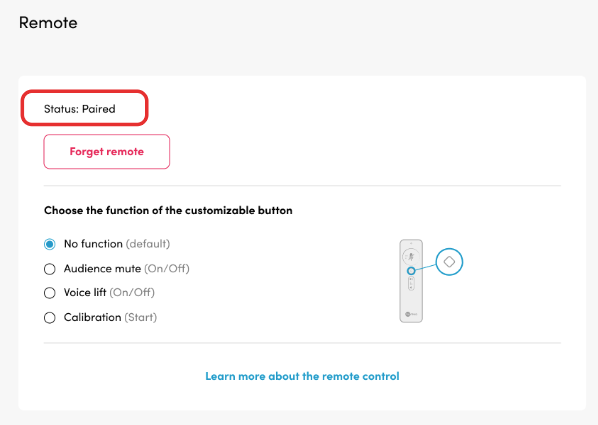
The remote control status is available in the Nureva App and Nureva Console. The remote control status is shown at the top of the remote control dashboard.
Open the Nureva App or Nureva Console.
Open the Settings menu
Select System settings
Click on Remote
The status shows the current remote connection.
Paired — remote control is paired with the system hub.
Unpaired — remote is not paired with the system hub.
Unknown — The system can't determine the remote's status.
Low-power state
The remote control enters a low-power state after 20 minutes without a button press. Press any button to wake and reconnect the remote control.
Clear a previous pairing
A remote control can only be paired with one system hub at a time. To pair a remote with a different system hub the previous connection needs to be cleared.
From the remote control
Press and hold the customizable button and volume down button together for 4 seconds.
Follow the pairing steps to pair the remote to the new system hub.
From the Nureva App or Nureva Console
Open the Nureva App or Nureva Console.
Open the Settings menu
Select System settings
Click on Remote
Press the Forget remote button.
Follow the pairing steps to pair the remote to the new system hub.
Setting up the customizable button (Nureva App)
The HDX system remote control features a customizable button with four options. Once configured, the selected configuration is saved in the HDX system hub. If a different remote is paired to the system hub the saved button configuration will be used.
Open the Nureva App.
Open the Settings menu
Select System settings
Click on Remote
Select the desired function.
No function (default) - The button has no assigned function.
Audience mute - Turns audience mute on or off.
Voice lift - Turns Voice Lift on or off.
Calibration - Starts system calibration.