When an HDL310 system is enrolled into Nureva® Console, it’s possible to remotely manage the device. This includes remotely restarting and resetting the system.
Remote restart and reset are also supported through the Nureva App, providing another convenient option for managing the HDL310 system.
Remotely restarting the HDL310 system
When troubleshooting an issue, restarting the HDL310 system could be required. Remotely restarting the device will force a power cycle, turning the system off and then on again. To remotely restart the system, it must be online and connected to Nureva Console. Remotely restarting the device is not available if the device is offline.
An HDL310 system can be restarted if there is an issue with the connect module or if the Ethernet cable is disconnected from the microphone and speaker bar.
Note: While the system restarts, it will be shown as offline in Nureva Console. The device will not be available for use in a conference until the restart is complete.
Before beginning the restart
Ensure the system is not in use before remotely restarting it. If the system is restarted while in use, the device will no longer be connected to the conferencing application and will be dropped from the conference.
How to remotely restart the system
Nureva Console
Go to console.nureva.com in a supported browser.
Sign in to Nureva Console.
From the Rooms dashboard select the room with the HDL310 system.
Select the HDL310 from the list of devices.
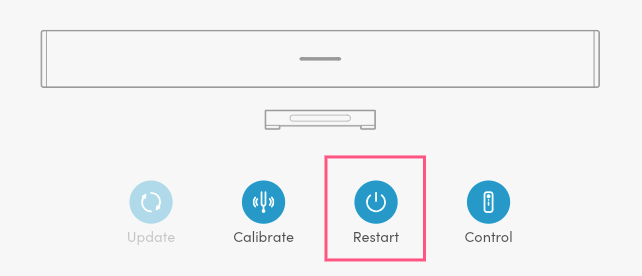
On the main Room overview page, press the Restart button.
In the dialog box, press Restart device.
Nureva App
On the home page, press the Restart button.
In the dialog box, press Restart device.
This will power cycle the device. Once the restart begins, the device status will be Offline. The device cannot be used during the restart process, which may take up to 5 minutes.
If the issue persists after restarting the device
A remote restart may not address all issues. If issues persist with the device after a restart, check the status indicator lights on the connect module for further diagnosis.
What do the LEDs on the connect module mean?
Remotely resetting the HDL310 system audio settings
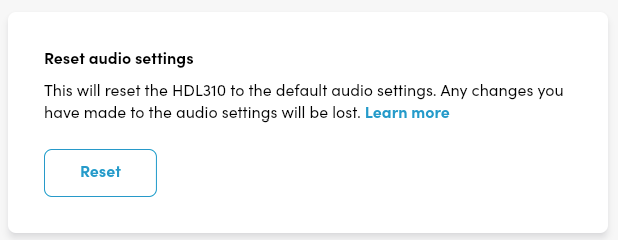
When troubleshooting an issue, returning the HDL310 system to its default audio settings might be necessary. Pressing the Reset button will restore the audio settings to their original default setup. The HDL310 must be online and connected to Nureva Console to be remotely reset. Remotely resetting the device is not available if it is offline.
You can reset audio settings directly in the Nureva App.
How to remotely reset the system
Nureva Console
Go to console.nureva.com in a supported browser.
Sign in to Nureva Console.
From the Rooms dashboard select the room with the HDL310 system.
Select the HDL310 from the list of devices.
Go to Tools.
Press the Reset audio settings button.
In the dialog box, press Reset.
The device will now be back to the original default audio settings.
Nureva App
From the home page, go to Tools.
Press the Reset audio settings button.
In the dialog box, press Reset.
The device will now be back to the original default audio settings.