Locate and record the enrollment code
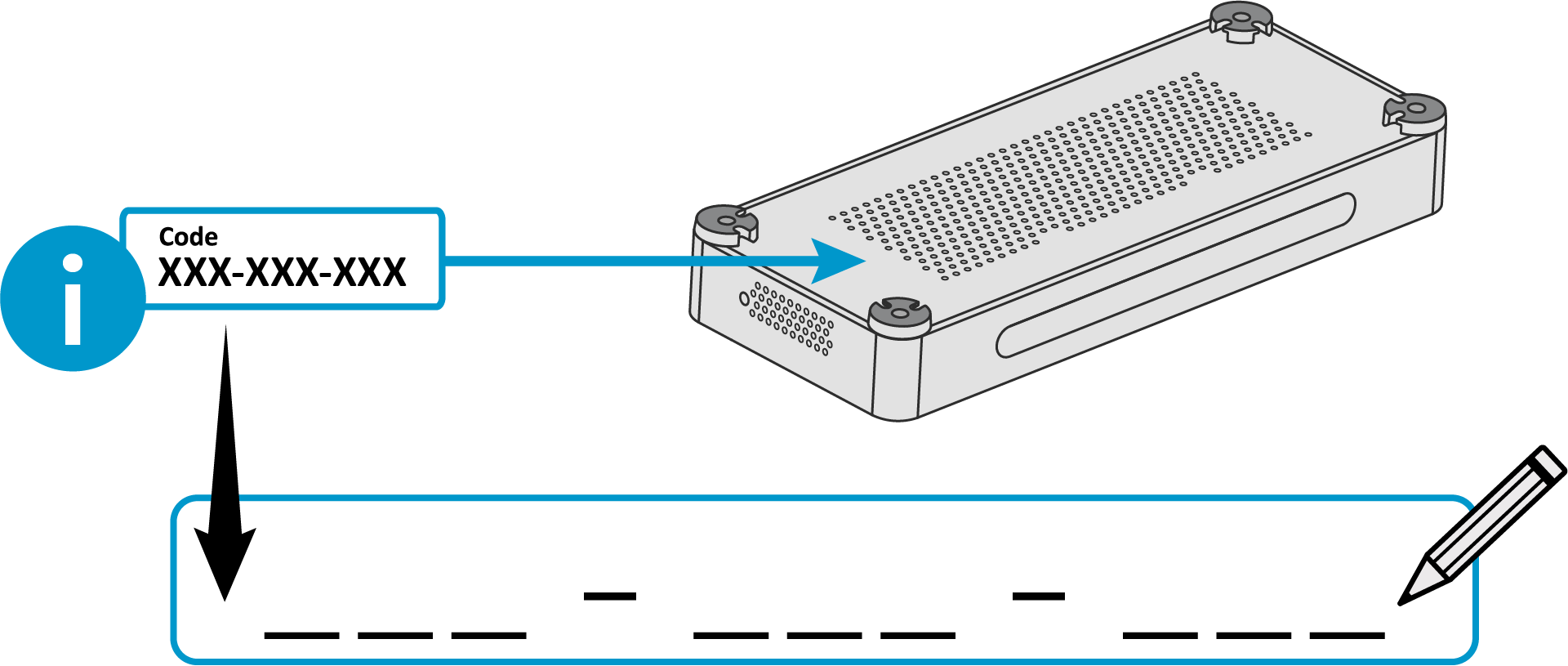
Nureva® Console and the Nureva App are used for management and monitoring of Nureva audio conferencing systems. An enrollment code is provided on a label found at the bottom of the system hub. This code is specific to the HDX Series and cannot be used for other Nureva systems.
When the system hub is removed from the box, an installation guide is found as soon as the box is opened. On the guide is a places to write the enrollment code. Recording this information on the guide allows for easy reference later.
Placement and installation
Review the HDX Series placement and installation sections of the HDX user guide before installing the device. Important considerations such as the placement of the audio bars and microphone pods are outlined in the guide.
Connecting the HDX components
HDX series components use Ethernet cables to connect the audio bars and microphone pods to the system hub as well as to connect the system hub to the network. Nureva does not include the Ethernet cables used to connect these components.
Important! The HDX device connection ports on the HDX system hub are designed for wired, single-room, on-premises connections only. They are not designed for inter-building links, or plenum runs between floors and must not be connected to a standard Ethernet network.
Recommended Ethernet cable specifications:
CAT5e
UTP (unshielded twisted pair)
24 AWG (solid copper)
Note: Use cables and wiring that is in accordance with the applicable national, regional, and local electrical codes or ordinances.
Supported Ethernet cable types
Choosing how to manage an HDX system
HDX systems can be managed using either the Nureva App or Nureva Console. The Nureva App connects to the system locally, while Nureva Console manages and monitors systems remotely through the cloud. The best option depends on an organization's network setup and IT policies, such as whether devices are allowed to connect to cloud services.
Using an HDX with the Nureva App
HDX devices access the Nureva App through the mobile app, a web browser or a USB connection to a computer. For the initial setup, update the HDX system over USB using a computer that is connected to the internet.
Connect the system hub to the computer
Connect the provided USB cable to the USB-C port on the HDX system hub.
Plug the USB cable into a USB-A port on the computer.
Use a USB-A to USB-C adapter if the computer does not have a USB-A port.
Open a supported browser and enter the IP address.
Chrome and Safari browsers are supported.
Use 169.254.253.253 if a static IP address has not been set.
Enter the enrollment code if prompted.
If a password has been set, use this instead of the enrollment code.
Click Continue and the Nureva App home page will open.
The HDX system can now be managed locally using the Nureva App directly from the connected computer.
Connecting the Nureva App with an HDX system
Using an HDX with Nureva Console
Nureva Console enables remote management and monitoring of Nureva conferencing systems. To manage an HDX device online, it must be enrolled in Nureva Console to connect with the physical hardware. An internet connection is required for enrollment and device management. The steps below explain how to enroll an HDX system.
Note: This article outlines the steps for enrolling an HDX series system. For information about enrolling other Nureva systems, see Get started with device enrollment..
Set up a Nureva Console account
Before an HDX series device can be enrolled into Nureva Console, an account will need to be set up. A computer will be required to set up the account. If there is already an account for Nureva Console, advance to Create an organization below.
Go to console.nureva.com in a supported browser.
Select Create an account.
Complete all the fields and setup steps.
Enter the email address.
Enter a first and last name.
Create a password.
Agree to the Nureva terms of use.
Opt in or opt out of email notifications.
An email will be sent to the email address.
Click the Create account button at the bottom of the screen.
Check email.
A verification email will be sent to the email address.
Check the junk or spam folder if the email is not in the inbox.
Select Verify in the email.
You will be directed to the sign-in page for the account.
Create an organization
Before an HDX series device can be enrolled, the user must log in to a Nureva Console account that is linked to an organization. When logging in to a Nureva Console account for the first time, the user will be prompted to create an organization. If the account already has an organization in place, advance to Enroll the HDX series below.
Go to console.nureva.com in a supported browser.
Enter the email address and password.
Select Sign In.
Follow the on-screen prompts to complete creating an organization.
After entering the organization name, click the Create button.
The organization will be linked to this user account and enrollment can begin.
Enroll the device
In the Rooms dashboard, click the Enroll Device button.
Enter the enrollment code from the system hub and click Next.
Select Allow from the pop-up window in the browser to continue with device enrollment.
Enter some room details such as the room name, type, capacity and tags to help identify the device and the room within the organization.
Click Save.
The HDX system will appear in the list of devices and can be managed online.
Enrolling an offline HDX system
An offline HDX system cannot be fully enrolled. The enrollment code can be entered and will be accepted, prompting the completion of the room setup. After the room setup is completed, Nureva Console will advance to the Rooms dashboard. The room will be shown with an unknown device listed as enrolling.
After the HDX system has been connected to the network and it is accessible by the cloud application, Nureva Console will complete the enrollment.
Problems enrolling?
If the system cannot be enrolled, the information below will help with troubleshooting.
The specific enrollment code for the HDX system must be used.
The enrollment code is found at the bottom of the system hub.
Enrollment codes for other Nureva conference systems are not valid with the HDX series.
The HDX series can only be enrolled into one account at a time.
Check the Ethernet cable is connected to the network.
Use the network connectivity tool to check the network configuration.
Check the status indicator lights on the front of the system hub.
HDX system hub — communication indicator lights | |
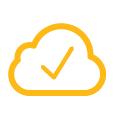
| Solid yellow: The device has communication with Nureva Console and is ready to be enrolled. |
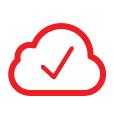
| Solid red: No communication with Nureva Console services or the internet. Blinking red: There is an unknown system error. The device should be power cycled. |
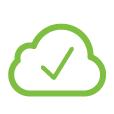
| Solid green: The device has communication with the Nureva Console server or the internet. Pulsing green: Signifies one or more of the following.
Off: The device is not connected to the internet. |
Update the HDX system
Updating the HDX system during installation ensures that all features function as intended. Keeping the HDX system up to date also helps maintain performance, security and access to the latest audio features and improvements. For the initial setup, update the HDX system over USB using a computer that is connected to the internet.
Nureva Console indicates the version of each enrolled device. If an update is available, notifications will be provided, including the notifications listed below:
The USB connection indicator light on the system hub will be solid yellow.
A blue update icon will be shown in the device version column of the Rooms dashboard.
To update the device, take the following steps:
Click the three dots in the Actions menu and select Update device. A confirmation dialog will appear to acknowledge that the device will not be available for calls during the update process.
Click Update to continue. The download and update process will commence. When completed, the new device version will be visible.
The HDX system will be unavailable for calls during the device update. Please do not turn off the computer or unplug or disconnect the device.