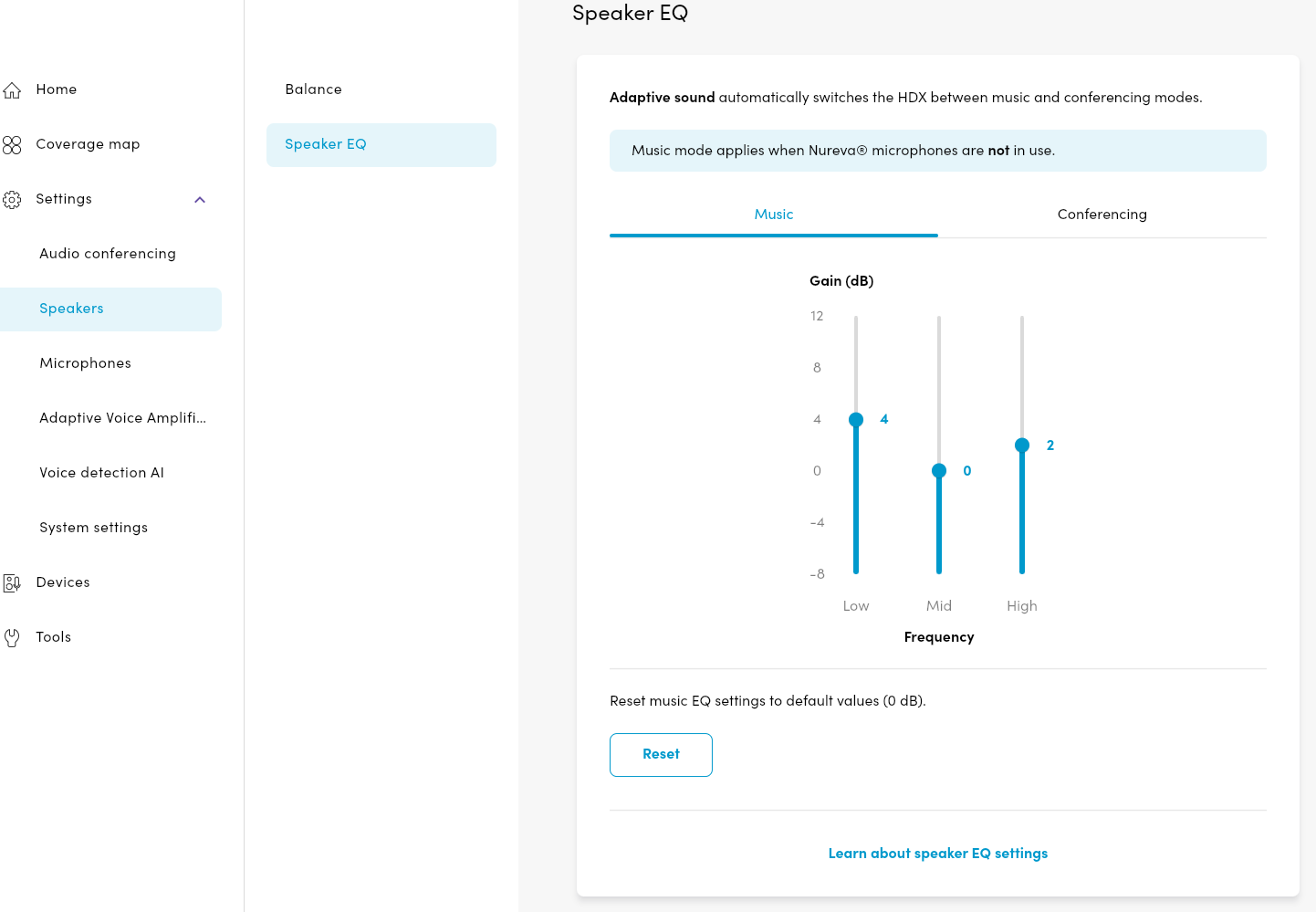
Speaker EQ controls how audio from the HDX system is reproduced across low, mid, and high frequency ranges. Adjusting these levels helps optimize sound quality for different rooms and setups.
HDX systems provide separate 3‑band EQ settings for Music and Conferencing modes, allowing each mode to be configured independently:
Music mode is used when the HDX microphones are not active and supports general audio playback.
Conferencing mode is tuned to improve speech clarity.
Each EQ band can be adjusted to account for room acoustics, audio bar placement, and specific listening requirements.
Frequency bands
Low — bass frequencies
Mid — vocal and speech range
High — treble and clarity
The default setting is 0 dB and the adjustment range is −8 dB to +12 dB.
Making adjustments
Equalizer adjustments can be made using the Nureva App and Nureva Console. When using Nureva Console, select the Room where the device is located before continuing with the steps.
To adjust the Speaker EQ:
Open the Settings menu.
Select the Speakers page.
Select the Speaker EQ settings.
Choose a mode:
Music
Conferencing
Adjust each frequency band as needed:
Move the slider down to reduce frequency gain.
Move the slider up to increase frequency gain.
Adjust settings incrementally and test the audio playback to achieve the balance appropriate for your space.