The coverage map in the Nureva® App visually represents the HDL310 system’s microphone coverage. It updates in near real time with sound location data, allowing a user to adjust room dimensions, create zones and monitor audio for optimal performance.
Before starting
Set up the HDL310 system by following the steps in the get started guide.
Open the Nureva App and connect to the HDL310 system.
The Nureva App is available from the App Store® (iOS, iPadOS®), Google Play™ (Android™) and through a web browser by using the IP address for a Nureva HDL310 device.
How to adjust the room layout
Adjustments can be made to the room layout to correctly reflect the actual layout of the room. The room size will default to the maximum supported by the HDL310 system.
View room layout
Open the Nureva App using a browser, an iPhone® or iPad® device or an Android mobile device.
Connect to the app by entering the HDL310’s IP address and enrollment code, then select Continue.
If the enrollment code has been replaced with a password, enter the password.
The app will advance to the Nureva App home page.
Open the Coverage map menu.
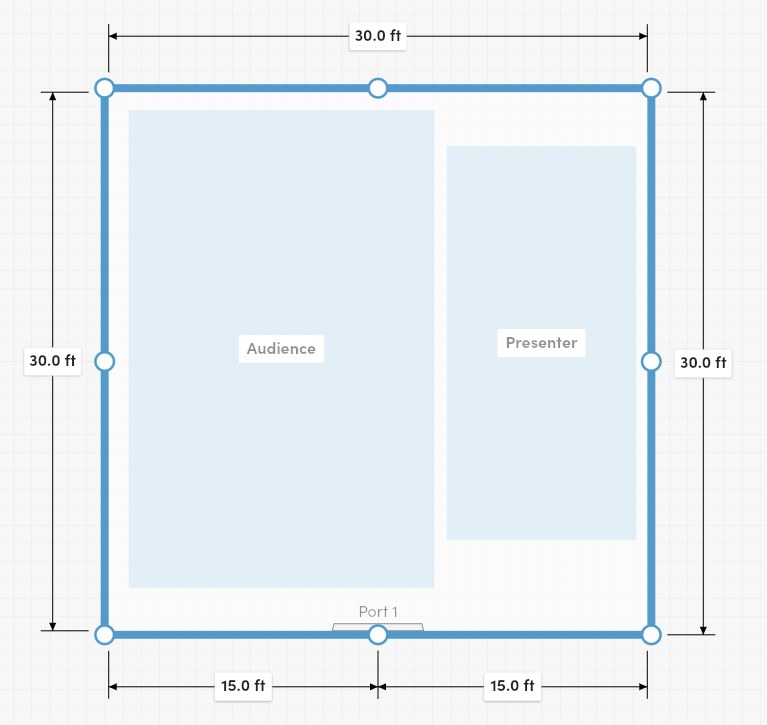
On the coverage map, the default room layout will be visible.
Adjusting the room layout
Step 1: Confirm system placement
When viewing the coverage map, if the microphone and speaker bar position is not represented correctly, it is recommended that a system calibration is performed. Note that the microphone and speaker bar will always be represented at the bottom of the map and a calibration will not change its position.
How to calibrate the HDL310 system
If the system placement is still not accurate after a calibration is completed, information about making further adjustments is available in Step 2.
Step 2: Refine the room size
Adjusting the coverage area to the correct room dimensions helps to refine the sound location data and provides a more accurate coverage map.
Important: The position of the microphone and speaker bar connected to Port 1 on the connect module cannot be changed.
Select the room walls to see their current dimensions.
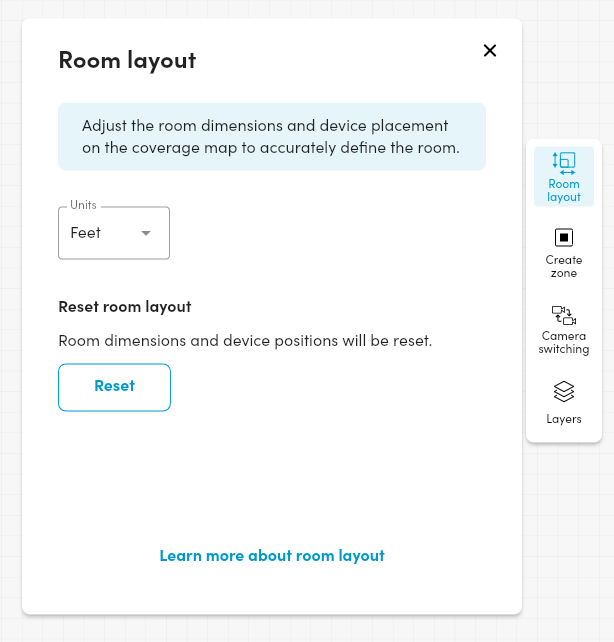
To change the units displayed on the coverage map, press the Room layout button and adjust the unit option.
Drag the resize handles to correctly resize the room walls.
The dimension of the wall to the microphone and speaker bar is measured from the center of the back of the bar.
When the room walls have been adjusted to the correct room dimensions, press Apply to save the changes.
Walk around the room and speak to confirm that the sound location data is visible on the map and is shown in the correct locations.
Reset room layout
Resetting the room will restore the default room size and the system placement based on a calibration.
On the coverage map, select the Room layout button in the side menu.
The room layout panel will open.
Press the Reset button to reset both the room size and the system placement.
Press Apply to apply the changes to the room layout.