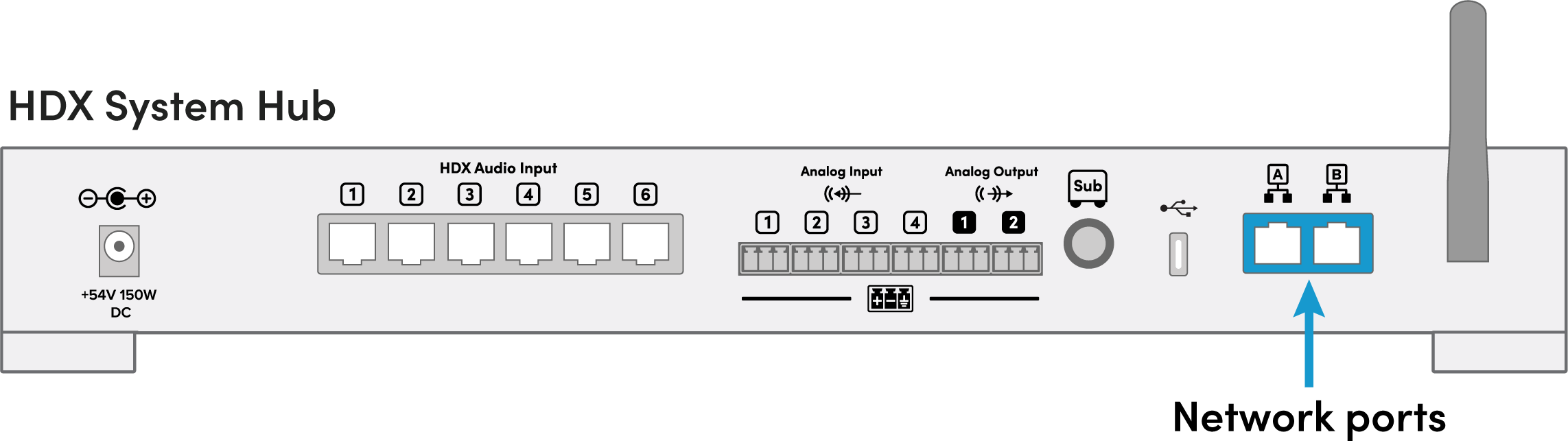
The HDX system hub has two network ports (ports A and B). These ports are functionally similar and both can be used for:
Internet connectivity
Local network connections
Audio and control integrations
Device setup and management
Supported traffic types
Both Ethernet ports support all system communication, including:
Local APIs for the Nureva App, room control and device integration
Sound location and room data for camera integrations
Nureva Console APIs and analytics
Software updates
Network port behavior
The network ports allow the HDX system to connect to two networks at the same time. Each port’s role is determined by the type of network it’s connected to — either LAN (local) or WAN (internet).
Note that:
Only one port at a time can be connected to a network with a default gateway.
The system uses the port connected to a gateway network for all internet traffic.
An error occurs if both ports connect to networks with gateways.
No manual configuration of port roles is required.
Note: Only port A supports a direct Ethernet connection to a computer for access to the Nureva App.
Common use cases
The following examples outline common ways to connect the Ethernet ports based on your deployment needs. Use them as a guide to choose the setup that best fits your network and integrations.
Internet connectivity (WAN)
Connect one port to a network with a default gateway for wide area network (WAN) and internet connectivity.
Access to Nureva Console
Cloud-based integrations
Automatic software updates
Local network connectivity (LAN)
Connect one port to a local area network (LAN) without a gateway for local device access and integrations.
Access to the Nureva App for setup and configuration
Integration with camera tracking systems
Communication with control systems (Extron, Crestron, Q-SYS)
Device discovery using link-local connection
Direct connection to a computer
Connect one port directly to a computer with an Ethernet cable to open the Nureva App using a link-local connection to perform setup or troubleshooting without a network.
Recommended configuration
Best practice: dual-network setup
For most installations, connect both ports as follows:
Port | Connection | Purpose |
|---|---|---|
Port A | Network without a gateway | Local device control (LAN) |
Port B | Network with a gateway | Internet access (WAN) |
This setup provides:
Reliable internet connectivity
Separation of local traffic from general network traffic
Improved performance for audio and control integrations