The HDL410 system requires a steady internet connection for remote management through Nureva® Console cloud. When enhanced internet security measures or firewalls are being used, the URLs in the list that follows will need to be approved to allow for a steady connection. The best practice is to connect the Nureva device to an unrestricted outbound network.
Note: Nureva Console connections are both inbound and outbound initiated. These are bidirectional, non-persistent connections.
Ensure port 8883 is open and the MQTT protocol is allowed on your network.
Ensure port 443 is open to allow secure HTTPS traffic for encrypted communication.
Ensure the network uses Dynamic Host Configuration Protocol (DHCP) to assign the Internet Protocol (IP) address.
Note that the HDL410 system does not support proxy server configurations.
Ensure port 123 is open and the Network Time Protocol (NTP) is allowed on your network.
URLs to approve
Services | URLs |
|---|---|
Configuration | app.launchdarkly.com:443 clientstream.launchdarkly.com:443 events.launchdarkly.com:443 stream.launchdarkly.com:443 |
Firmware updates | nurevaproddistribution.blob.core.windows.net:443 versions.nureva.com:443 |
Device enrollment to Nureva Console | account-management-service.nureva.com:443 |
IoT Hub | gateway-iothub-prod.azure-devices.net Needs either port 8883 for MQTT protocol or port 443 for SSL |
System software updates | api.snapcraft.io:443 *.snapcraftcontent.com:443 *.cdn.snapcraft.io:443 assertions.ubuntu.com:443 login.ubuntu.com:443 public.apps.ubuntu.com:443 |
Telemetry | dc.applicationinsights.azure.com:443 dc.applicationinsights.microsoft.com:443 dc.services.visualstudio.com:443 Ad blocking breaks telemetry functionality (continuous connection) |
NTP | ntp.ubuntu.com:443 |
Troubleshooting connections
The front of the connect module for the HDL410 system features status lights that indicate network and cloud connectivity. If the device is offline, the cloud status light will turn red and the Nureva Console cloud application will show the device as being offline.
Explore the status lights for the HDL410 system
To help determine the reason the device is offline, Nureva offers a convenient online tool that checks the network configuration and provides a report with recommended remedies. Generally, this tool will be used after checking that the local area network (LAN) is working and when one of the following situations applies:
A user cannot enroll the device into the Nureva Console cloud application.
An HDL410 system is showing offline status in the Nureva Console cloud application.
Required before starting
On the back of the Nureva connect module, locate the network Ethernet cable.
Disconnect this network Ethernet cable from the connect module and plug it into a computer to run a network check.
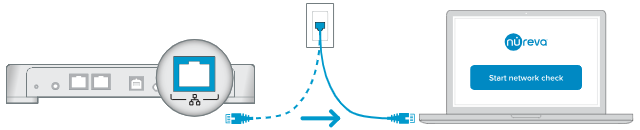
Ensure the network settings of the computer mimic how the connect module accesses
the network:
The computer is using only the same VLAN as the connect module.
The computer is not using a VPN.
The computer does not have any proxy configuration enabled.
Proceed to the network connectivity tool
Nureva Console security brief
Find security and privacy details related to our cloud-based management platform.